Open a readable receipt image
Open the intended ledger and use its image entry point to choose a receipt photo or an image shared from another app. Keep the merchant, currency, date, and total readable. A cropped or blurred total gives you less information to check later.
Choose the option to recognize and record the receipt. Receipt recognition is a Basic feature with usage limits. Check Membership for your available recognitions.
Compare the draft with the receipt
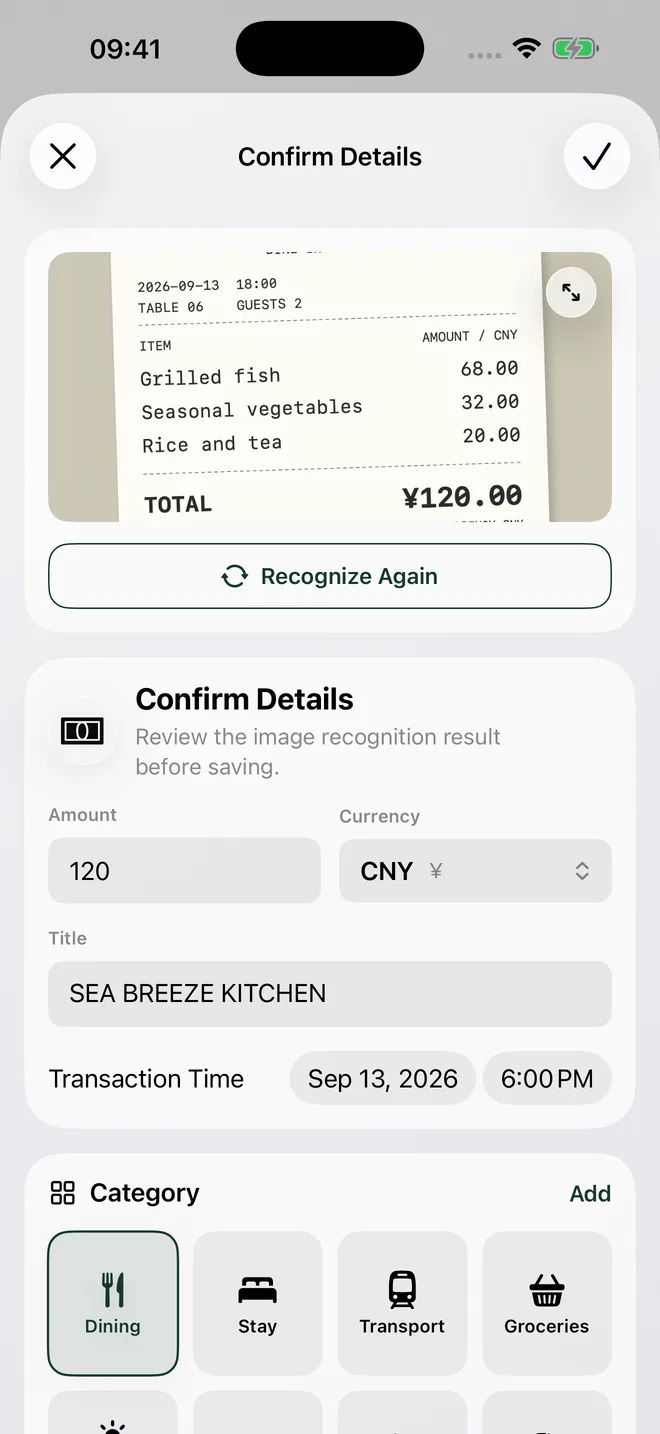
When Confirm Details opens, check the amount and currency together. In the pictured sample, the total is CNY 120, the merchant is SEA BREEZE KITCHEN, and the receipt is dated September 13, 2026 at 6:00 PM.
Check that the draft uses the total you intend to record rather than a subtotal, tax line, or individual item. Edit any incorrect field. Open the image preview when you need to read the original more closely.
Review every draft when recognition produces more than one entry. Recognition can make mistakes; it does not save expenses on its own.
Choose the payer and the people sharing it
Select the person who paid, then choose the participants for this purchase. For the CNY 120 dinner, two people sharing equally would each have a CNY 60 share. The payer and the participants serve different purposes.
Check the category, notes, and any allocation shown in the form. A receipt can show what was bought, but it cannot decide which members of your ledger should pay for it.
Save and check the resulting entry
Confirm the draft after reviewing the fields. Return to the ledger and find the saved expense. Check its amount, currency, payer, and participants. In a shared ledger, let syncing finish and check the same entry on the other device.
If you are only trying the recognition flow, cancel and discard the draft. The receipt-review screen is not proof that an expense has been saved.
Find the expense in your spending totals
Open Overview and review the spending category, member allocation, or date. Open the entries behind a total to find the receipt expense. Check the saved entry if the allocation is unexpected.
Personal bookkeeping is free. Shared ledgers, syncing, and receipt recognition require Basic. CoolMeow does not transfer payments; the records and calculated splits are for your review.
Watch the shared-ledger example
A 46-second recording of the actual iOS and Android apps, using sample data. Waiting time is edited out. The suggested split is a calculation.